
Guide for patients and dentists
How to open a CBCT scan (DICOM file)
Your CBCT scan arrives as a zip file that contains a set of DICOM files: hundreds of image slices that together make a 3D scan. DICOM is an open, international standard format, so the files work in any DICOM viewer or dental software. Download the zip, extract it, then open the extracted folder in a free DICOM viewer on a Windows or Mac computer: the quickest is DentiSlice, which runs in your web browser with nothing to install. It will not open like a photo, and that does not mean the file is broken.
- GDC regulated
- CQC registered
- IRMER-compliant
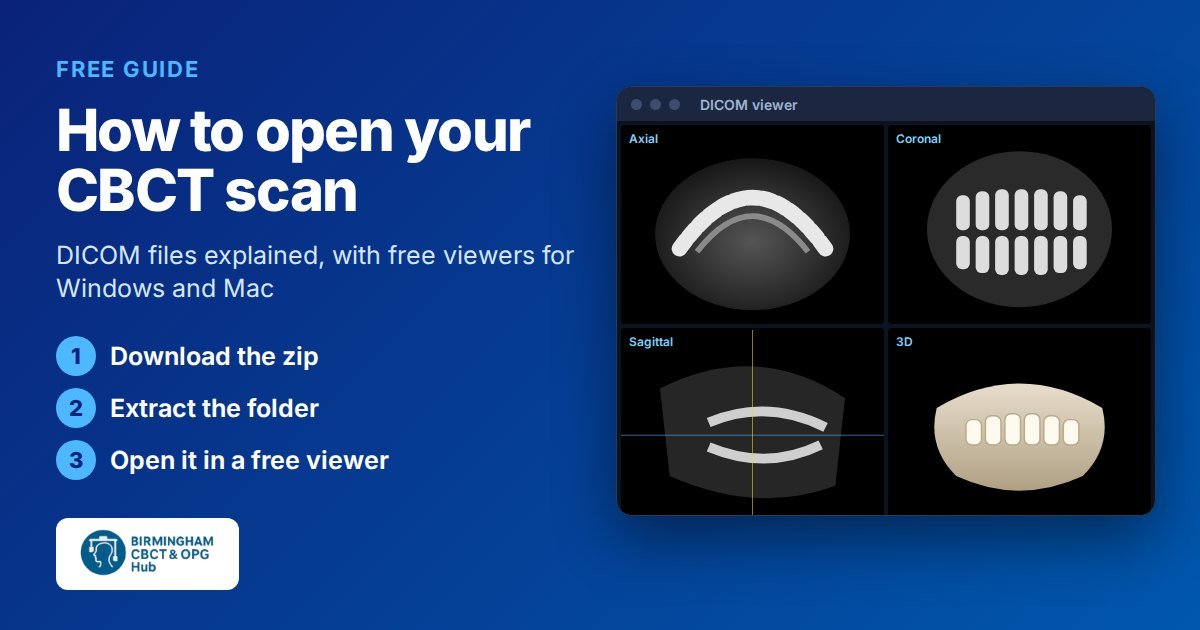
In short: 1. Download the zip from the link we sent you. 2. Extract (unzip) it. 3. Go to DentiSlice in Chrome, Edge or Firefox and drag the extracted folder onto the page. Use a Windows or Mac computer, not a phone.
What you need
A CBCT scan is a large 3D dataset: hundreds of megabytes and hundreds of image slices. Showing it in 3D takes a reasonably capable computer.
- A Windows or Mac desktop or laptop with an up-to-date Chrome, Edge or Firefox web browser (for DentiSlice). The 3D Slicer program needs Windows 11 or macOS 14 or later. Phones and tablets generally can’t open these scans.
- Enough memory. At least 8 GB of memory (RAM) is recommended. The dental planning program Blue Sky Plan asks for at least 16 GB.
- Adequate graphics. The 3D view works best with a dedicated (separate) graphics card, such as NVIDIA or AMD.
- Free disk space. Room for the zip and the extracted folder, which together take roughly twice the size of the download.
Older or low-spec computers, and especially their graphics cards, may fail to open the scan or may crash. If that happens, try a different, newer computer.
How to open your scan on Windows
- Download the zip. Open the link in the email or text we sent you. Google Drive will say it cannot preview the file: that is expected. Click the Download button (the downward arrow at the top right). Because the file is large, Google may warn that it can’t scan it for viruses. Click Download anyway. Wait until the download has fully finished.
- Extract the zip. Open your Downloads folder, right-click the zip file and choose Extract All, then Extract. A normal folder with the same name appears next to the zip. Use this folder from now on, not the zip.
- Open DentiSlice. In Chrome, Edge or Firefox, go to dentislice.com. There is nothing to install and no account to create.
- Drag the folder in. Drag the extracted folder from your Downloads window onto the DentiSlice page. The scan appears in a few seconds, and you can scroll through the slices or switch to the 3D view.
How to open your scan on a Mac
- Download the zip. Open the link we sent you. Google Drive cannot preview the scan, so click the Download button (the downward arrow at the top right). If Google warns that it can’t scan the file for viruses, click Download anyway, and wait for the download to finish.
- Extract the zip. Open your Downloads folder in Finder and double-click the zip. macOS unpacks it into a folder with the same name. Use this folder from now on.
- Open DentiSlice in Chrome or Firefox. Go to dentislice.com. DentiSlice lists Chrome, Edge and Firefox as supported browsers, so use one of those rather than Safari.
- Drag the folder in. Drag the extracted folder from Finder onto the DentiSlice page.
Free viewers we recommend
Because DICOM is an open standard, any DICOM viewer can open your scan. These three are free and work well with CBCT scans. Use only the official sites below.
DentiSlice
Runs in your web browser (Chrome, Edge or Firefox on Windows, Mac or Linux). Free, with no installation and no account. Made for dental CT and CBCT scans, with slice views, 3D and measurements. DentiSlice says your scan is processed only on your own computer and is not uploaded. At least 8 GB of memory recommended. Our first choice for patients.
3D Slicer
Windows, Mac and Linux. Free and open source, installed on your computer. A powerful program with excellent 3D views. It needs a newer computer (Windows 11 or macOS 14 or later, 8 GB of memory recommended). To open a scan, drag the extracted folder onto the 3D Slicer window, choose to load it into the DICOM database, then select the scan and click Load.
Blue Sky Plan
Windows only (no longer available for Mac). Dental implant-planning software that is free to download and to view scans; some planning features are paid. It needs a powerful computer: 16 GB of memory and a dedicated graphics card. Popular with implant dentists.
For dentists
Every scan is supplied as a standard DICOM dataset. DICOM is an open, vendor-neutral format, so no conversion is needed: import the extracted folder (not the zip) into the implant-planning or imaging software you already use, exactly as you would a scan from any other centre. If your software will not read it, check that the zip has been fully extracted and that you are importing the whole folder. More about how we work with practices: for dentists.
Is a browser viewer safe for my scan?
Your scan is medical information that identifies you, so check how any online viewer handles it before you use it. Some websites upload the scan to their own servers. DentiSlice states that DICOM files are processed only on your computer and nothing is sent to the internet or a server, which is why we suggest it. If you would rather not use a website at all, install 3D Slicer or Blue Sky Plan instead.
Frequently asked questions
Why is my scan sent as a zip file?
A CBCT scan is not one picture. It is hundreds of separate image files, one for each slice through your jaw. A zip packs them into a single file so nothing gets lost on the way and the download is smaller. You need to extract (unzip) it before a viewer can read the slices.
Why can’t I open it on my phone?
Phones and tablets are not built to unpack and display a 3D dataset of several hundred megabytes. They usually show the zip as an unknown file, or run out of memory. Please download it on a Windows or Mac desktop or laptop instead.
Is my file broken?
Almost certainly not. A complete scan is a large zip, usually hundreds of megabytes, and once extracted the folder holds many files (often hundreds). Some have no file extension or end in .dcm, and there may be a file called DICOMDIR. Double-clicking one of these files usually does nothing useful: that is normal, because they are meant to be opened together in a viewer. If the zip is much smaller than expected or shows an error when you extract it, the download probably did not finish: download it again.
My computer says it can’t open the file. What should I do?
That message means no program on your computer is set up to read DICOM, not that the scan is faulty. Make sure you have extracted the zip first, then open the extracted folder in one of the free viewers on this page, for example by dragging it into DentiSlice in your web browser. If the viewer opens but freezes or crashes when it shows the scan, the computer’s memory or graphics card is probably not powerful enough: try a newer computer.
Can you send my scan in a different format?
We supply every scan as standard DICOM files. DICOM is the open, international standard for medical images, so the same files work in every DICOM viewer and in any dental planning software that reads DICOM, and there is normally no need for another format. If the scan will not open, the problem is almost always the computer or a missing viewer: try DentiSlice in your web browser on a capable Windows or Mac computer.